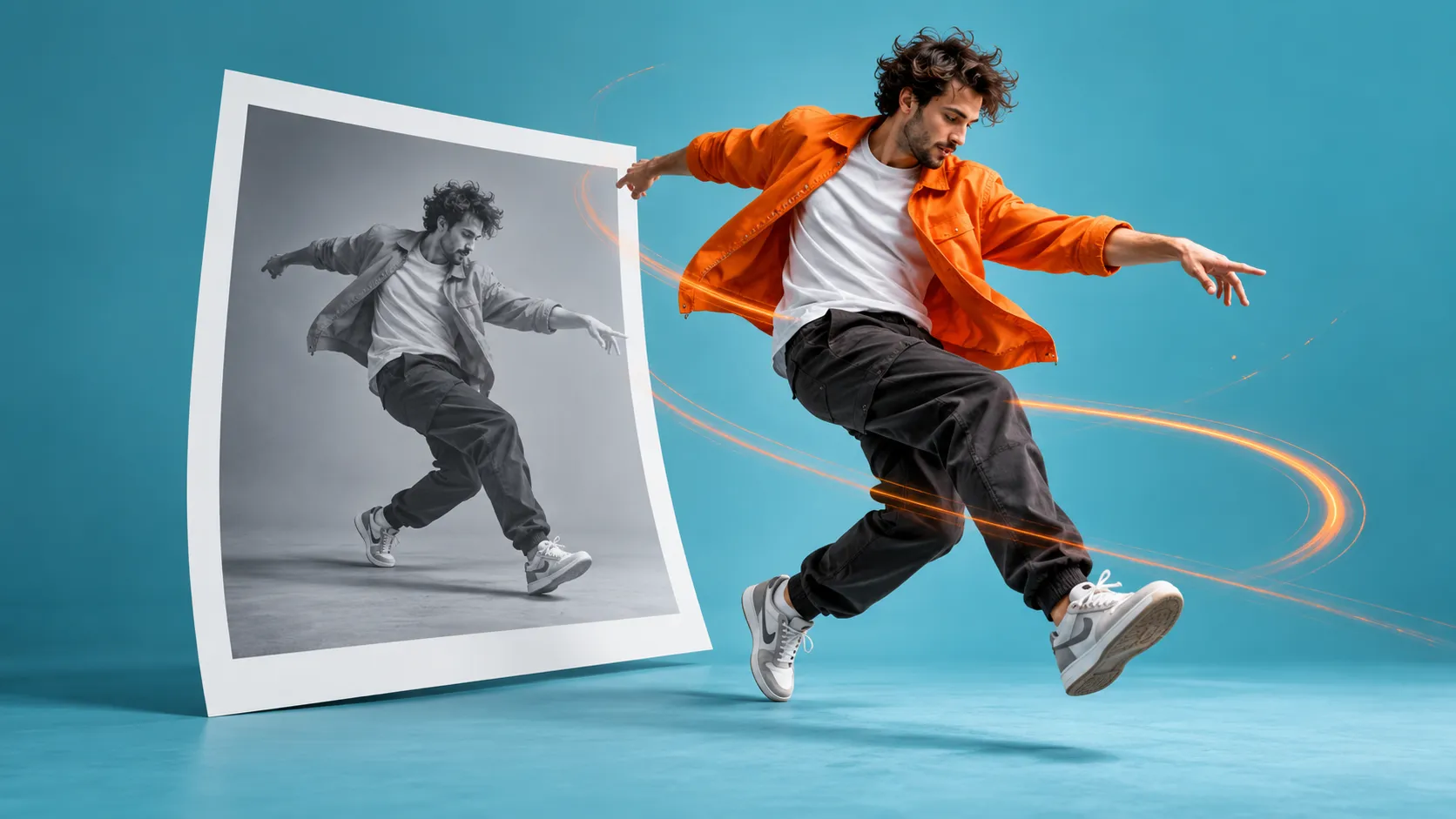
To make a photo dance, you need to give the character a source of movement. In Viggle, Mix is suited to this task: the image defines the character’s appearance, while a template or uploaded video provides the movement reference. You can use it to make a short greeting with your own photo, animate an illustrated mascot, or create a playful clip featuring a fictional character. The result depends on both the image and the dance you choose, so it is best to start with a simple scene.
What to Prepare Before Animating a Photo
For your first video, choose an image of one adult who has agreed to this kind of editing, or use a fictional character you created. Ideally, the whole figure should be visible, including the head, hands, and feet. Even lighting and a clear silhouette make the result easier to assess. If the original image is cropped at the chest, the lower body will need to be generated, and its clothing and proportions may differ from the look you intended.
Avoid images where the hands are hidden behind the back, hair covers the face, or the legs blend into a dark background. A relaxed standing pose and clothing without small lettering are easier choices for a first attempt. You do not need to retouch the photo to “perfection”: preserving facial features and clear body outlines matters more. For a mascot, it also helps to establish where its arms and legs are, especially if its proportions differ from a human’s.
How to Choose Movements for a Dancing Photo
Viggle lets you use movement from a ready-made template or your own video. For an initial test, choose a short clip with one dancer, a stationary camera, and a clearly visible figure. Simple side steps and shoulder movements are easier to assess than jumps, quick turns, or hands that constantly cover the face. This is an editorial recommendation for a first test, rather than a limitation of the service.
You can film yourself: stand in front of the camera, take two steps to the right, two to the left, and finish with a brief pause. Make sure the dancer stays in the frame. A description such as “the character dances in place with a friendly manner, the camera is stationary, and the whole figure is visible” is useful as a brief for filming the reference. In a motion-transfer workflow, text alone does not replace a video: the chosen source provides the actual choreography.
How to Turn a Photo into a Dance in Viggle
Open the Mix workflow and prepare two source files: an image of the character and a video with the movement you want. You can choose an available dance template instead of uploading your own video. First, watch the entire reference, paying attention to the beginning, the ending, the hand movements, and the turns. If the character should look relaxed and friendly, do not choose a template with sharp lunges simply because it is popular.
Upload the image, select the movement source, and start generation in the interface available to you. Control names and available settings may differ between versions of the service. Mix places the character into an existing video scenario, so do not assume that the entire background of the original photo will be preserved. If the background is important, check it in a test clip before putting together the final video.
After generation, watch the video at normal speed, then pause it at the more difficult moments. Check the facial likeness, where the hands join the arms, the position of the feet, and the edges of the clothing. Save a successful version and separately note the main problem you want to address. It is easier to compare results when you change only the photo or only the movement at a time, rather than all the source material at once.
What to Do If the Dance Looks Unnatural
If the arms appear doubled or pass through the body, try a simpler reference without overlapping limbs. If the face changes noticeably during a turn, choose a clip where the character spends more time facing forward. If the feet appear to slide, first check whether they are clearly visible in the dance reference and whether the camera moves. Replacing a complex reference is often more useful than generating several more versions without changing anything.
If the clothing flickers or a pattern becomes blurred, try an image with larger details. If a halo appears around the figure, check the contrast between the character and the photo’s background. These techniques do not guarantee error-free generation, but they can help identify the cause. You can sometimes remove a single bad frame during editing; a sustained distortion of the body is better addressed by replacing the source material.
How to Prepare the Video for Publication
For your first finished video, one successful movement and a clear idea are enough: an illustrated robot celebrating the completion of a project, for example. Trim any empty opening, keep a brief pause at the end, and check that the head and feet remain visible when you crop the video vertically. Choose music separately, taking account of the rights available for its use; creating a dance effect does not mean that any track can be published with it.
Before exporting, check your account’s current limits, generation costs, and download terms. Free offers and restrictions can vary between modes and change over time. Use your own images or material you have permission to use, and do not present a synthetic clip as real footage of another person. An “AI animation” label helps viewers understand the format. The main test of a successful dancing photo is simple: the character is recognizable, the movement is clear, and visual errors do not distract from the joke or greeting.