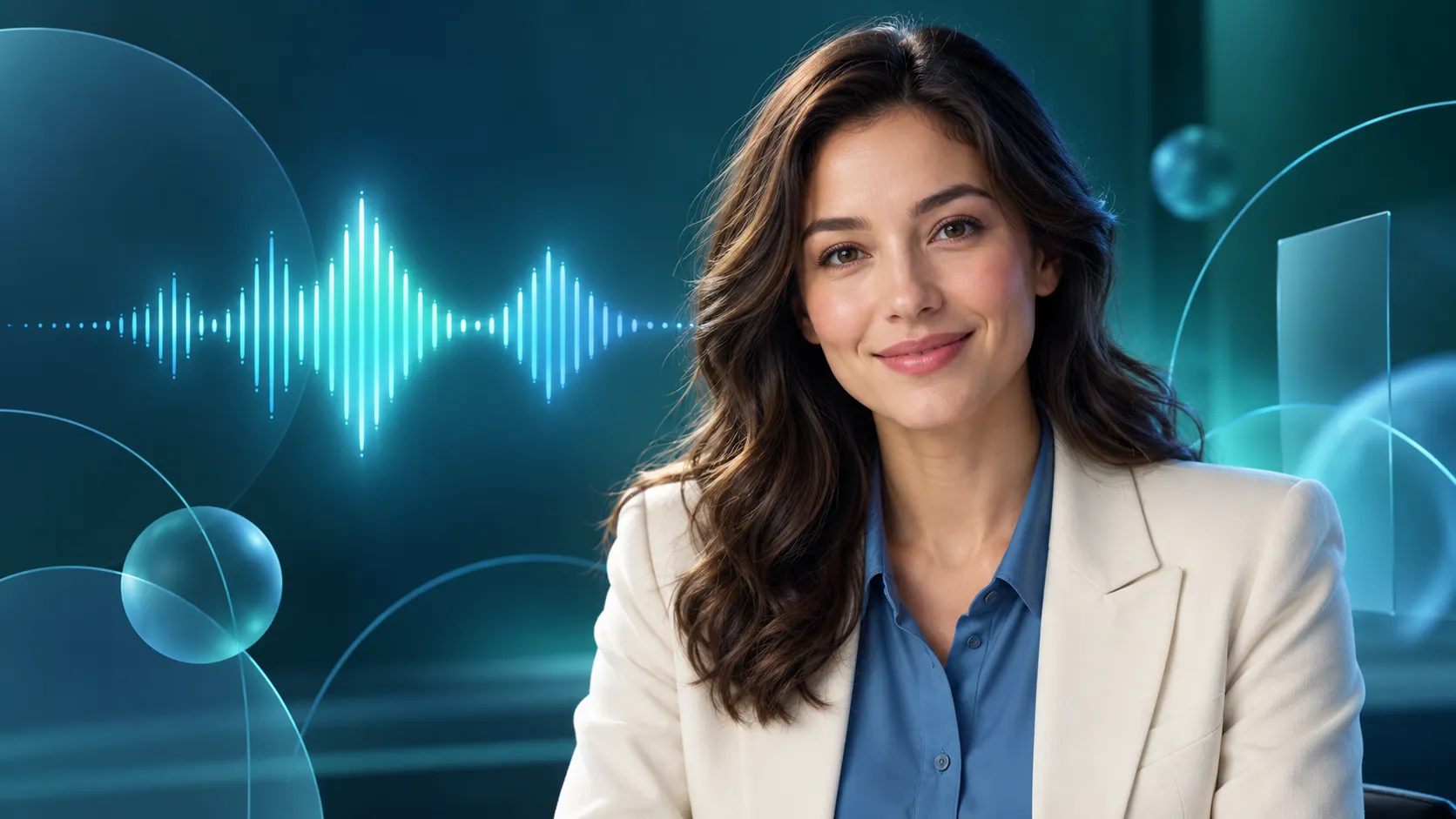
A singing photo is a video in which the face in a still image moves along with a vocal track. To create this effect, DreamFace offers tools for singing portraits and separate workflows for pets. You choose a suitable image and musical material, and the service creates an animation. Mouth movements are a particularly visible sign of quality here, so preparing the source material matters more than an elaborate background or eye-catching transitions.
How Singing Photos Work and Which Option to Choose
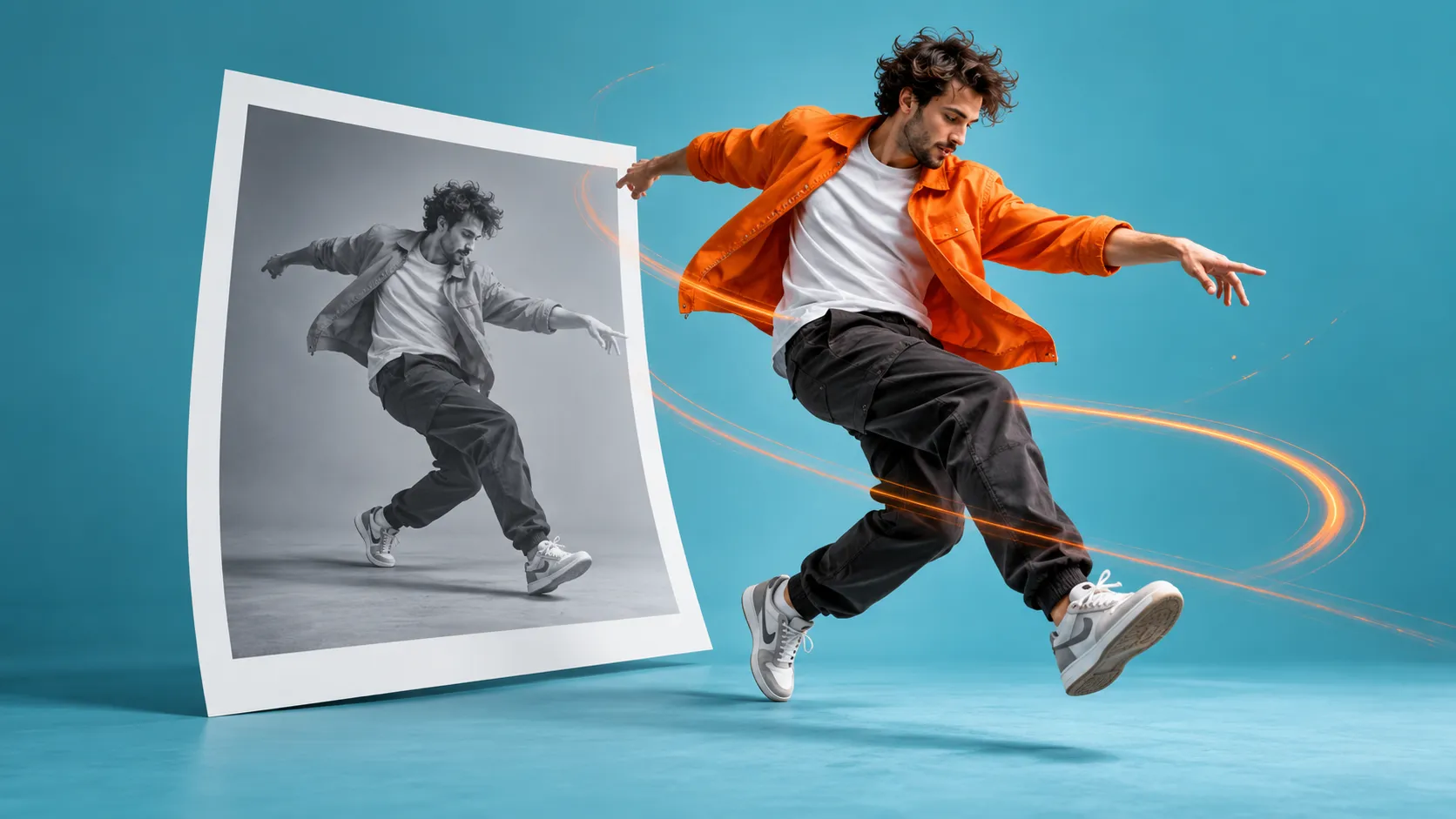
The main aim of this kind of video is to match mouth movements and facial expressions to a vocal track. A singing photo does not require full choreography. If you want a full-body dance, start with a motion-transfer workflow; if the character should deliver a greeting in a normal speaking voice, a talking-avatar workflow is more suitable. For a musical greeting with a close-up shot, a singing portrait is the right format.
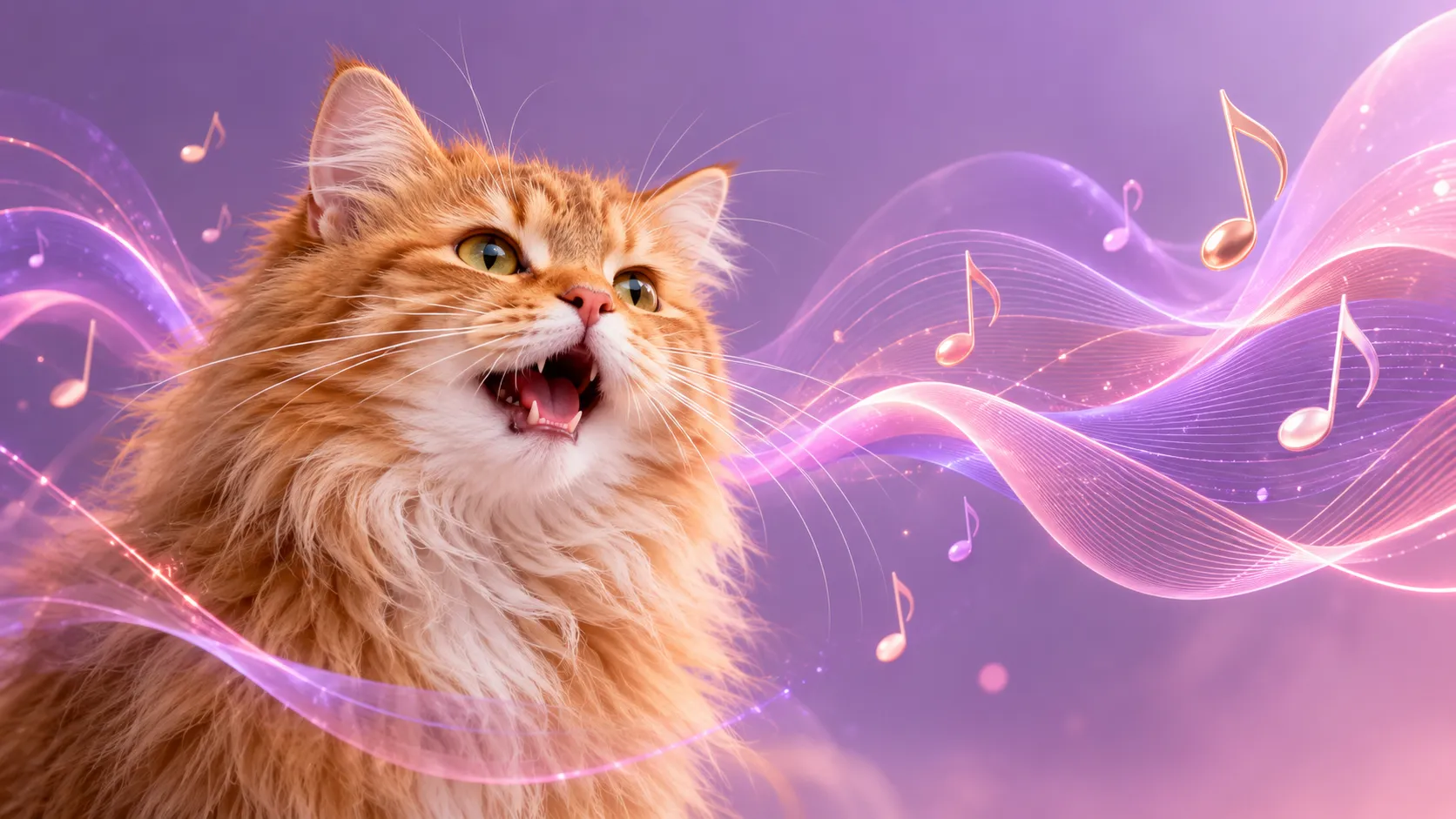
DreamFace has AI Singing for photos of people and Pet Lip Sync for images of animals. For a first attempt, use your own portrait if you are an adult, or a photo of your pet. If you use someone else’s portrait, get their permission for this kind of animation beforehand. A fictional character can also be the subject of an experiment, but an unusual facial structure increases the risk of odd mouth movements.
How to Prepare a Photo of a Person or Pet
Choose a sharp image with soft lighting, an unobstructed face, and a relaxed expression. A front-facing view is easier to work with than a strongly turned head. A scarf, microphone, hand, or large strand of hair should not cover the mouth. An extremely broad smile in the source image may be less suited to gentle vocal phrases: the AI has to change the expression and adjust the articulation at the same time.
For a cat or dog, a photo taken at the animal’s face level is useful. Make sure the nose and mouth are clearly visible and the head does not disappear into fur or shadow. Start with one animal in the frame and no toy in its mouth. It is better to crop the original photo slightly than to enlarge a tiny face from a wide shot. If the details become pixelated when enlarged, choose another photo rather than expecting animation to fix everything.
How to Make a Singing Photo in DreamFace
For a human portrait, open the AI Singing tool, add the image, and choose an available musical effect or song. Check whether the mood of the sample suits your character. Then generate a test version and assess it before preparing a series of videos. The specific buttons and available effects depend on the app or web interface version, so use the purpose of the mode as your guide.
For a pet, use Pet Lip Sync. DreamFace’s official guide describes Song, Text, and Audio options. Song is intended for ready-made musical templates; Audio lets you use your own soundtrack. Text is for converting text into speech, so entering a phrase does not in itself guarantee that it will be sung. If you specifically want a singing cat, choose a musical template or a vocal recording you have permission to use.
An easy first idea is a pet “performing” a short musical greeting. For your own recording, you could write a simple original lyric: “Sun at the window, my bowl is full, off on our walk once again.” Record it to a melody you have composed yourself, or use music with suitable permission. This is an example of material for the audio track, rather than a promise that text mode will automatically compose a melody.
How to Make the Performance More Convincing
For the first test, choose a clip with one clear vocalist, no long introduction, and no noisy backing track. When the music is louder than the voice, it is harder to assess whether the mouth movements match. If you are preparing your own recording, remove unnecessary silence at the beginning and end, and check that the sound is not distorted by excessive levels. Do not speed up the audio separately from the video after generation: it is easy to throw them out of sync.
Watch the result first with sound, then without it. With sound, you can tell whether the mouth follows the vocal phrases; without sound, it is easier to spot distortions in the teeth, chin, or pet’s face. Pay attention to pauses: constant mouth movement between lines can look strange. To improve the result, try a shorter excerpt, another photo with a neutral expression, or a recording with a less busy arrangement.
If the face starts to look like a different person, replace the sharply angled photo with a front-facing portrait. If your pet develops an overly “human” smile, check that you have selected the animal-specific workflow and try another image. Do not judge the quality by the first frame alone: an error may appear during a sustained note or a sudden change of expression near the end of the clip.
What to Check Before Saving and Publishing
Save a version that prioritizes a recognizable character over exaggerated expressions. When editing, keep the whole vocal phrase so that the video does not end halfway through a word. Place any caption away from the mouth, and choose a clean frame for the cover image. One successful scene is enough for a greeting to a friend; several weak versions in succession will not make it more expressive.
Before generating, check the terms for the specific mode you are using: available attempts, paid features, export options, and watermarks. Do not assume unlimited use based on a single advertising headline. Check the rights to the music and image separately, and label the video as an AI animation when publishing it. Do not use the effect to imitate another person’s real performance without their consent. A successful singing photo works as a clearly understood creative joke or musical greeting, rather than evidence that the subject actually sang.